
In this tutorial, we will show you how to set up your Webzi email account in Mozilla Thunderbird.
1. Open Mozilla Thunderbird:
- Open Mozilla Thunderbird and click on "Mail".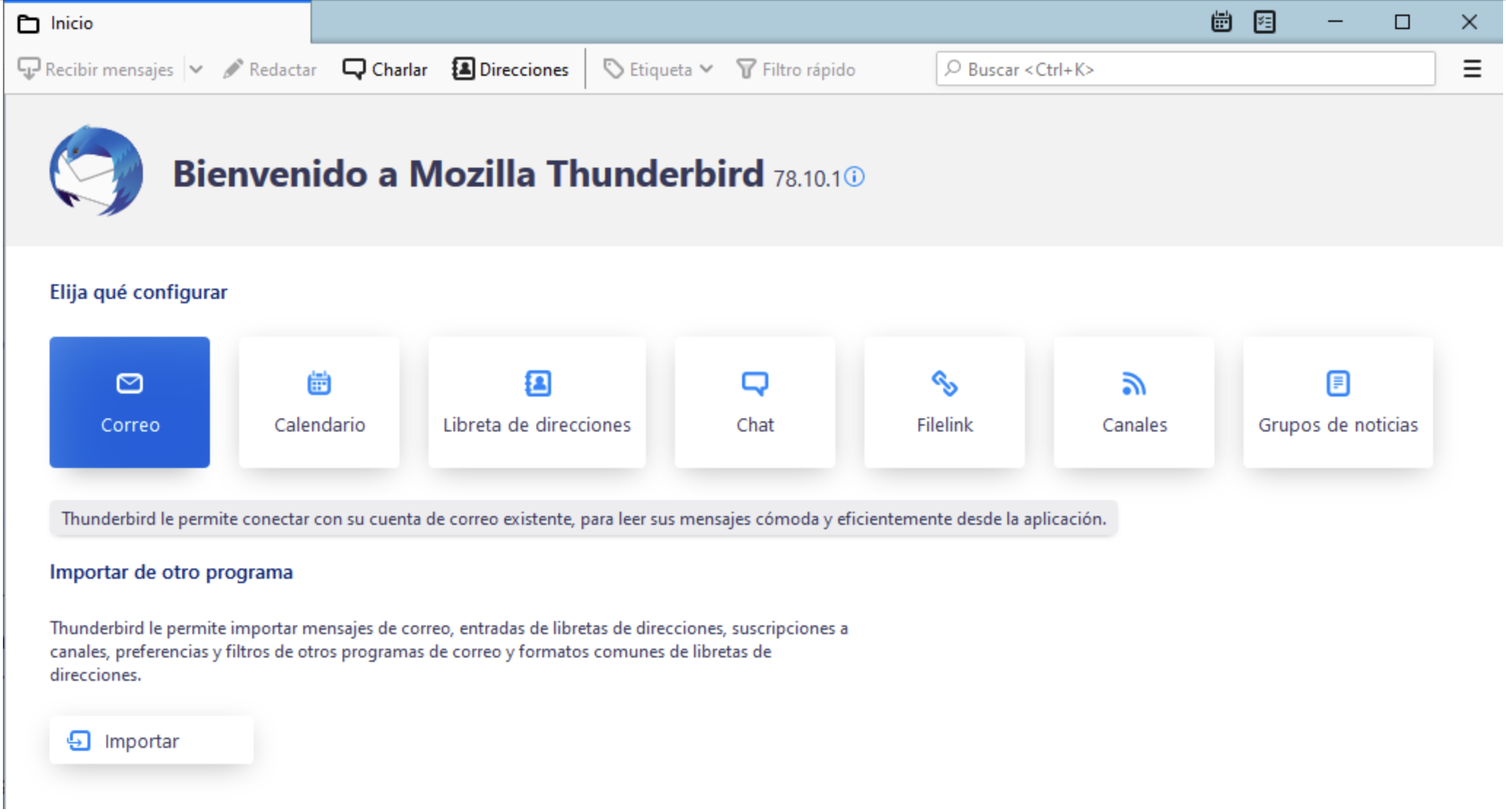
2. Enter Account Information:
- Enter your name, your email address, and your password. Then, click on "Continue".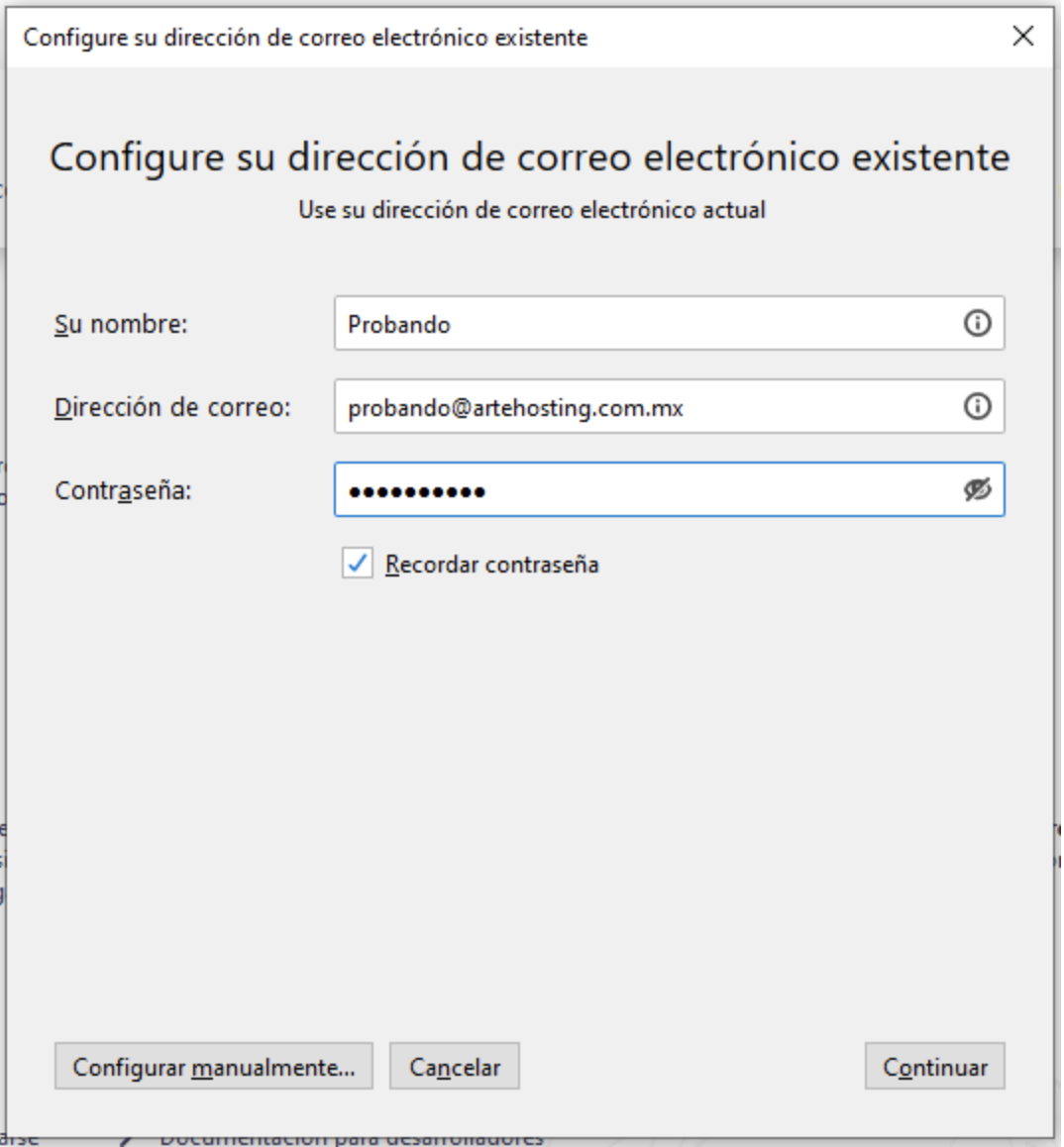
3. Select Account Type:
- Make sure to choose "IMAP" for the account type.
- Then, click on "Manual setup".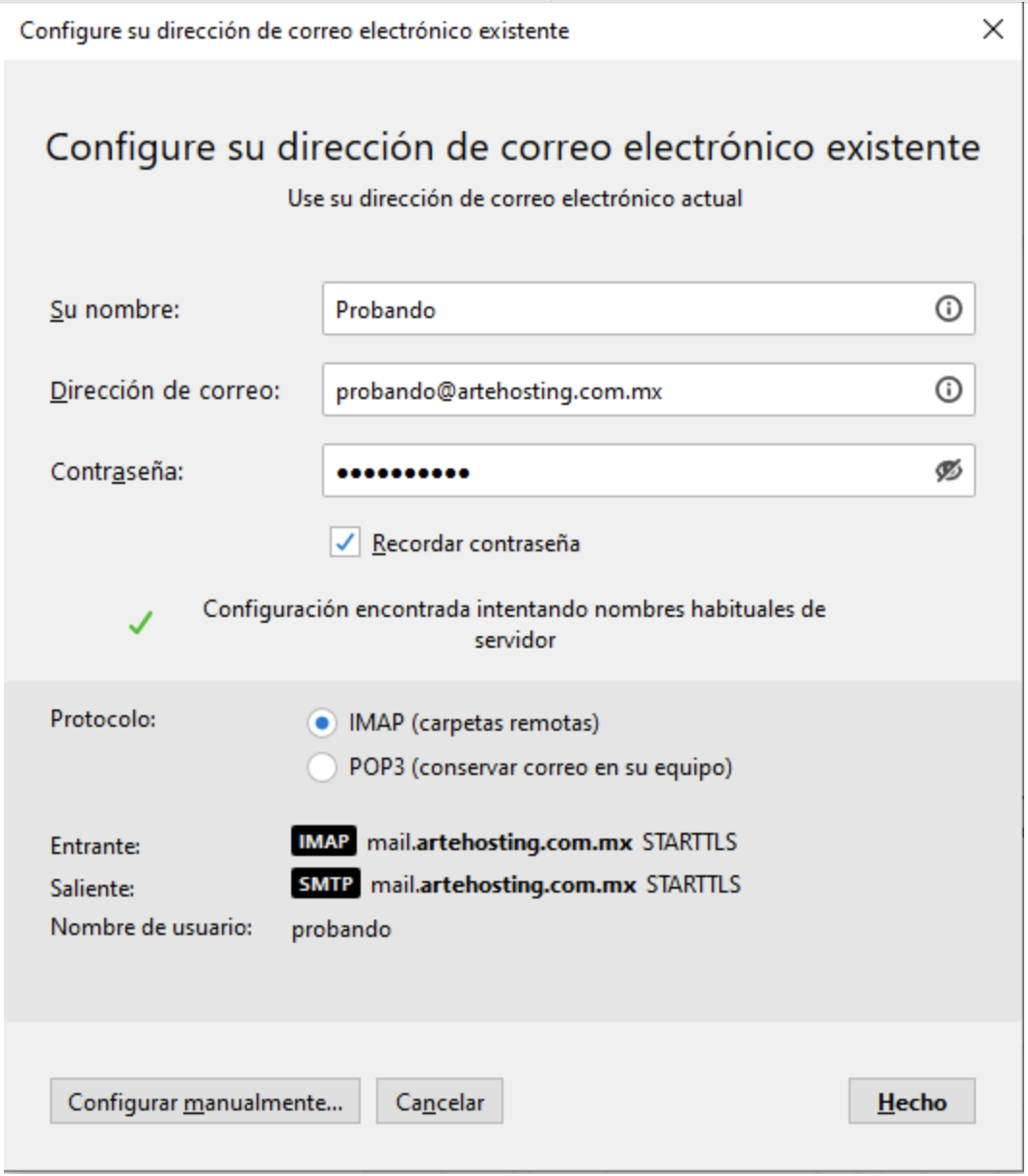
4. Correct Username:
- Although Mozilla Thunderbird detects the configuration correctly, the username may be incomplete. Your username should be your full email address, so make sure to correct that parameter.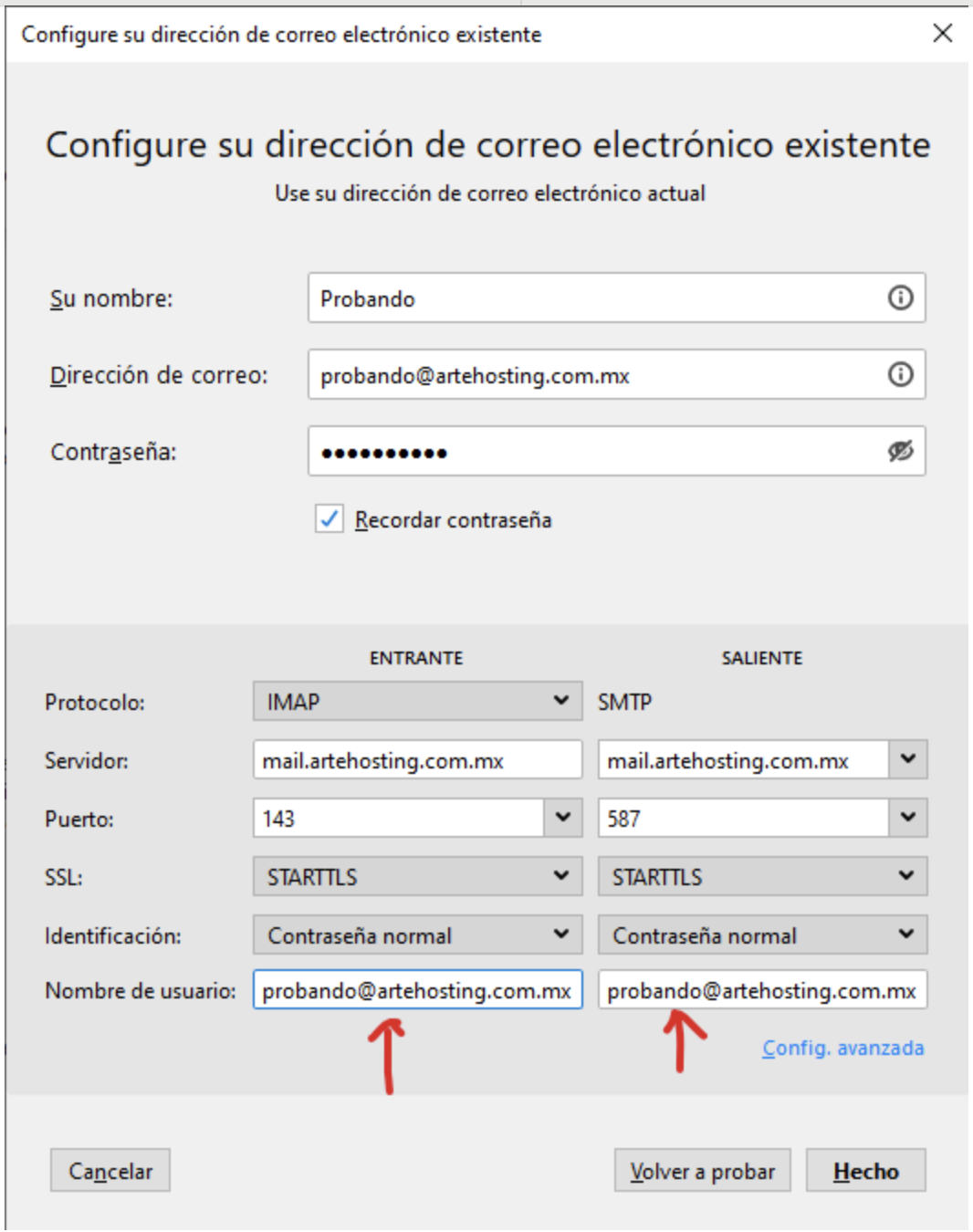
5. Finish Configuration:
- Click on the "Done" button and you'll have your account perfectly configured.
- If you want to manually modify the connection ports, you can use the settings from this article: Configure Your Email Using IMAP or POP3.
Make sure to replace "probando@artehosting.com.mx" with your own email address corresponding to your domain. For example, if your domain is "mydomain.com", your email address should be something like "youremail@mydomain.com".
This will ensure that the configuration is done correctly and that you can send and receive emails without any issues.
If you have any questions, we're available to assist you via our chat system.