
Email filters are automated tools that allow you to manage your emails more efficiently. They enable you to sort, classify, and automatically handle incoming messages based on specific criteria such as sender, subject, content, or date. Filters can move messages to specific folders, block or redirect unwanted emails, and automate tasks like auto-responses or marking messages.
Suppose you receive many invoice emails that often distract and fill up your inbox. You can create a filter that moves all emails containing the phrase "Urgent Invoices" in the subject to a folder called "Invoices", so these emails do not clutter your main inbox and you can review them at your convenience.
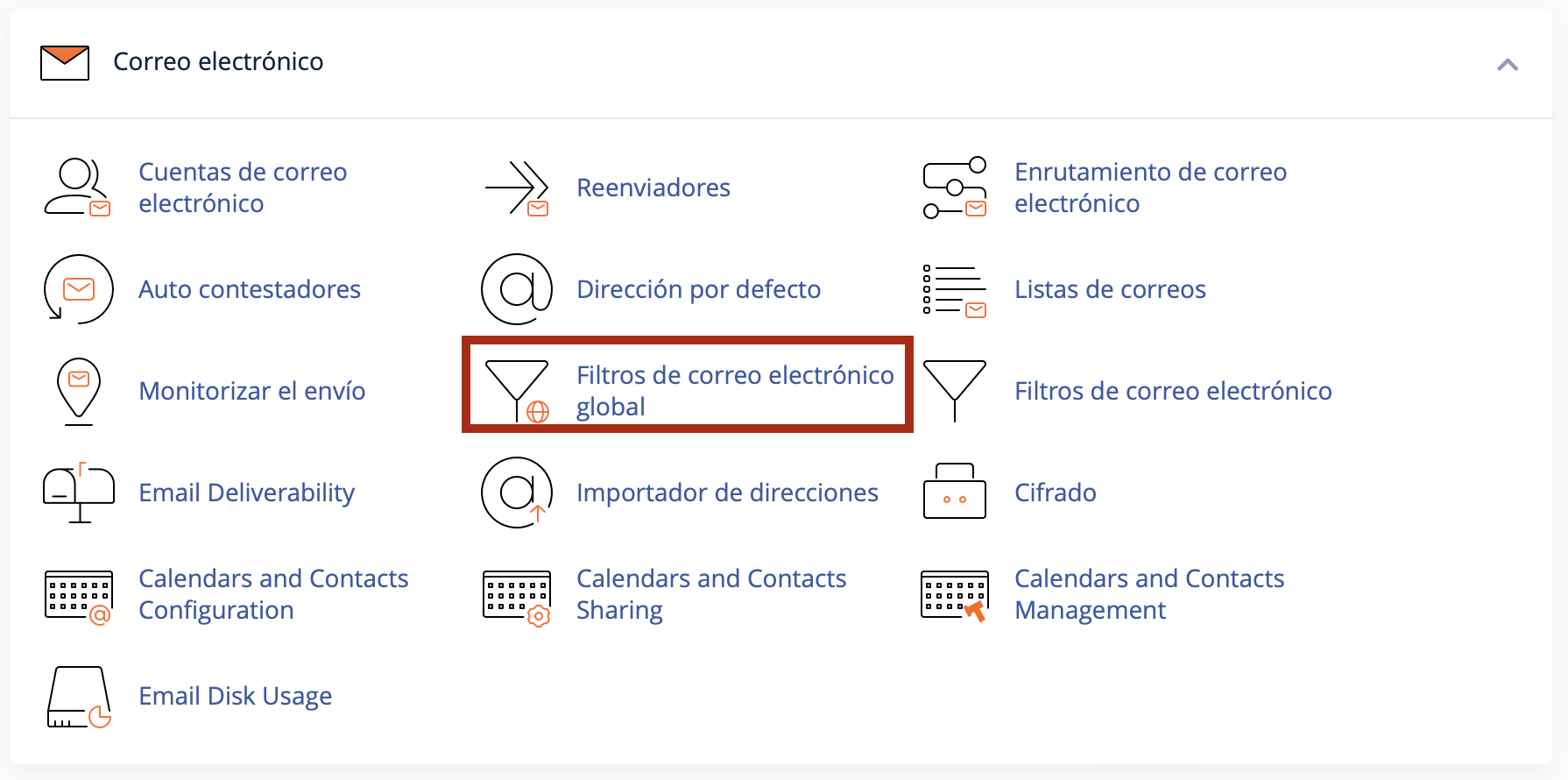
- Log in to cPanel, go to "Global Email Filters" and finally select "Create a New Filter".
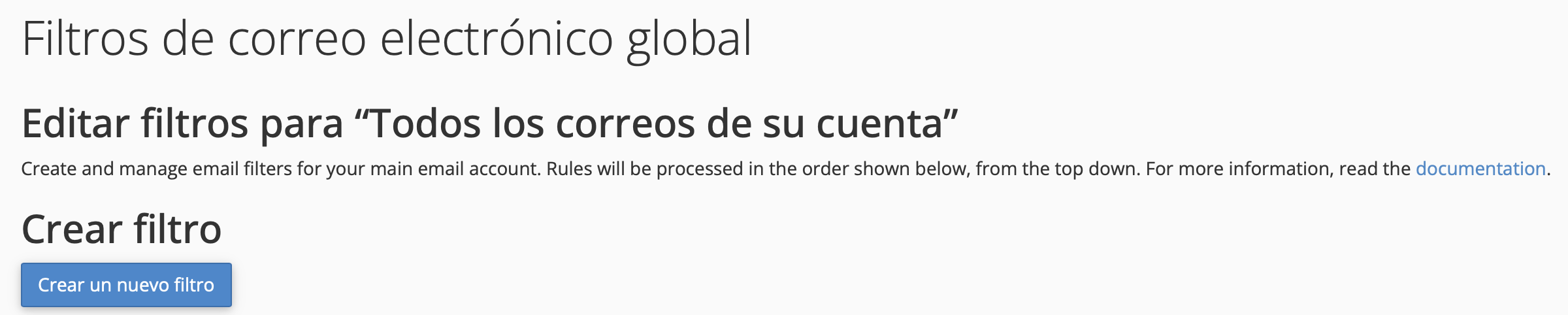
- Configure according to your needs, for example:
- In the "Filter Name" field, enter a name that allows you to easily identify it; this does NOT affect the filter's functionality.
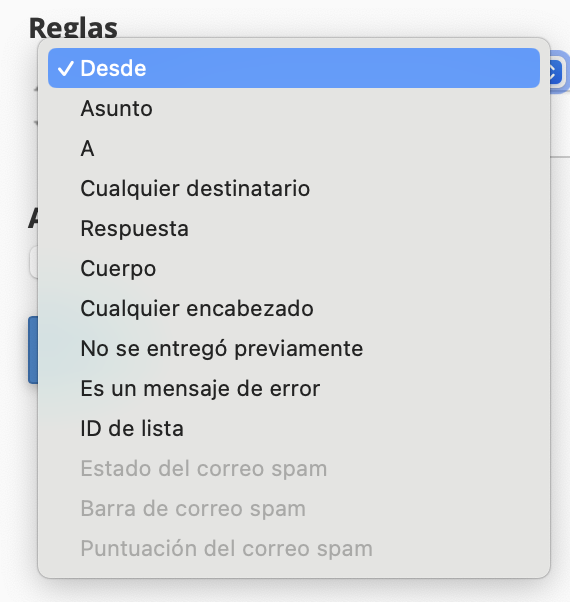
- For the first criterion, you can choose from any of the following, recommending using "from" or "subject".
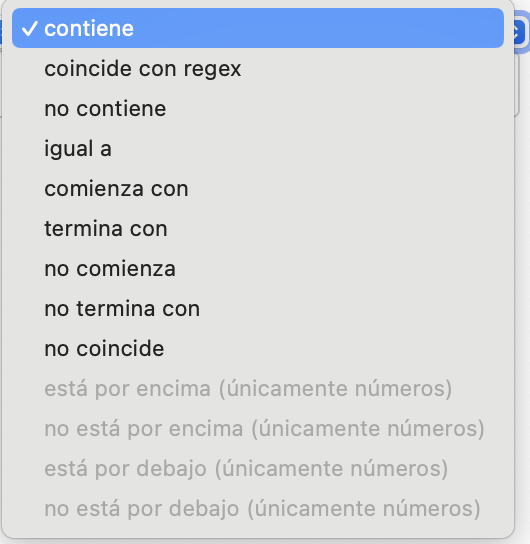
- For the second criterion, it is recommended to use "contains" or "equals".
- In the "Actions" criterion, indicate what you want to do with the email when it meets the criteria specified.

- The results should look similar to the following:
- If you want to delete the message:

- If you do NOT want to delete the message but want it to be saved in a folder:

- If you want to delete the message:
CAUTIONS AND IMPLICATIONS OF USING COMMON WORDS
Using very common words in email filters is likely to result in many legitimate messages being incorrectly identified as unwanted, known as false positives.
For example, if you filter emails containing the word "meeting", you might miss important emails related to your work or activities.
Avoid False Positives
1. Specificity: Use combinations of words or more specific phrases instead of generic terms.
2. Multiple Conditions: Configure the filter to activate only when several conditions are met (e.g., "invoice" and "urgent").
Regular Review
Review and adjust the filters periodically to ensure they remain effective and are not incorrectly filtering important emails.
Email filters in cPanel are a powerful tool to improve email management, allowing you to save time and keep your inbox organized automatically.